Enable recording yourself
You decide whether to enable history on first launch. Only new copies are recorded, and items copied while paused are not added later.
Local clipboard history and favorites for Mac

Organize text, code, links, colors, inline images, and file path references on your current Mac. Recent keeps everyday copies close, Favorites preserves useful items, and search with previews makes reuse more reliable.
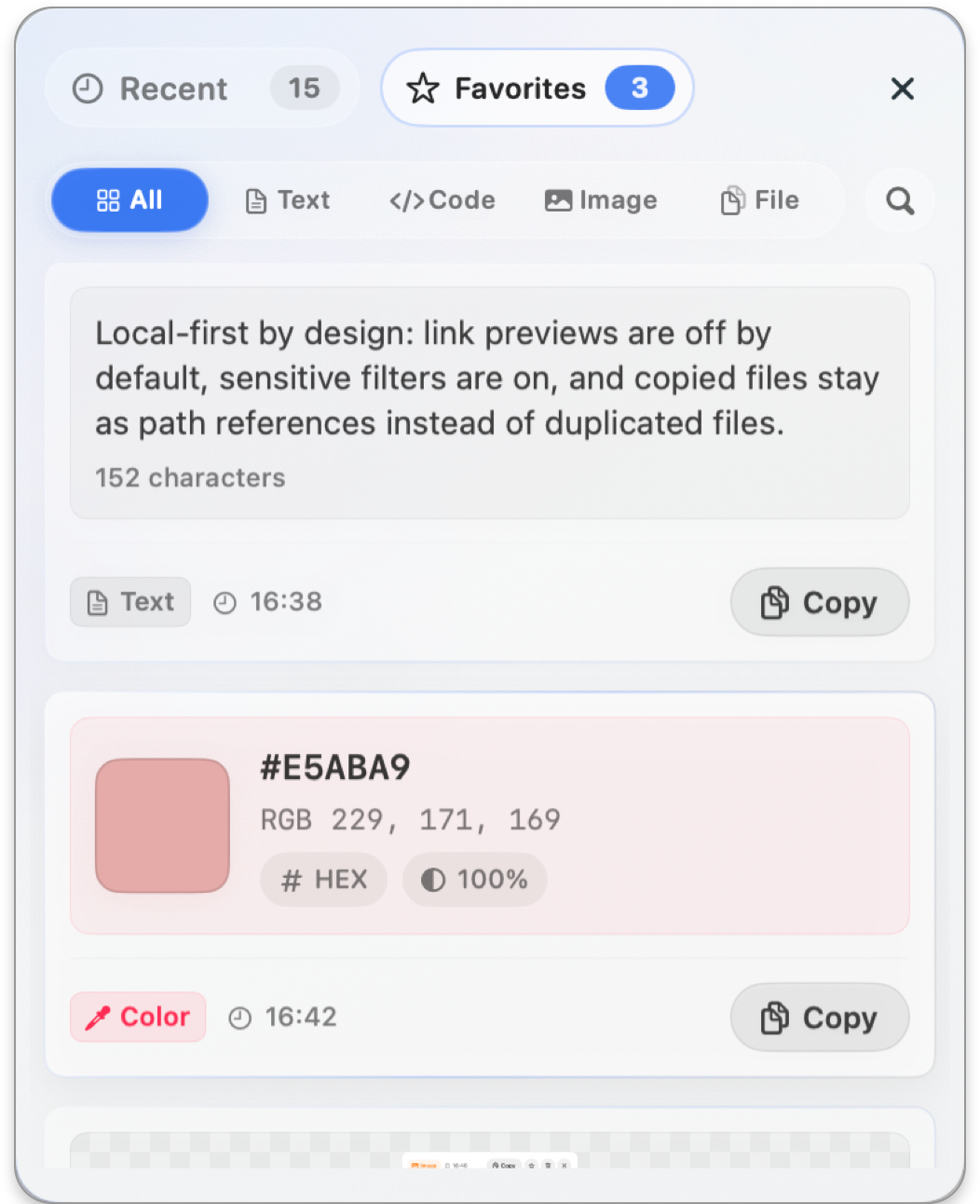
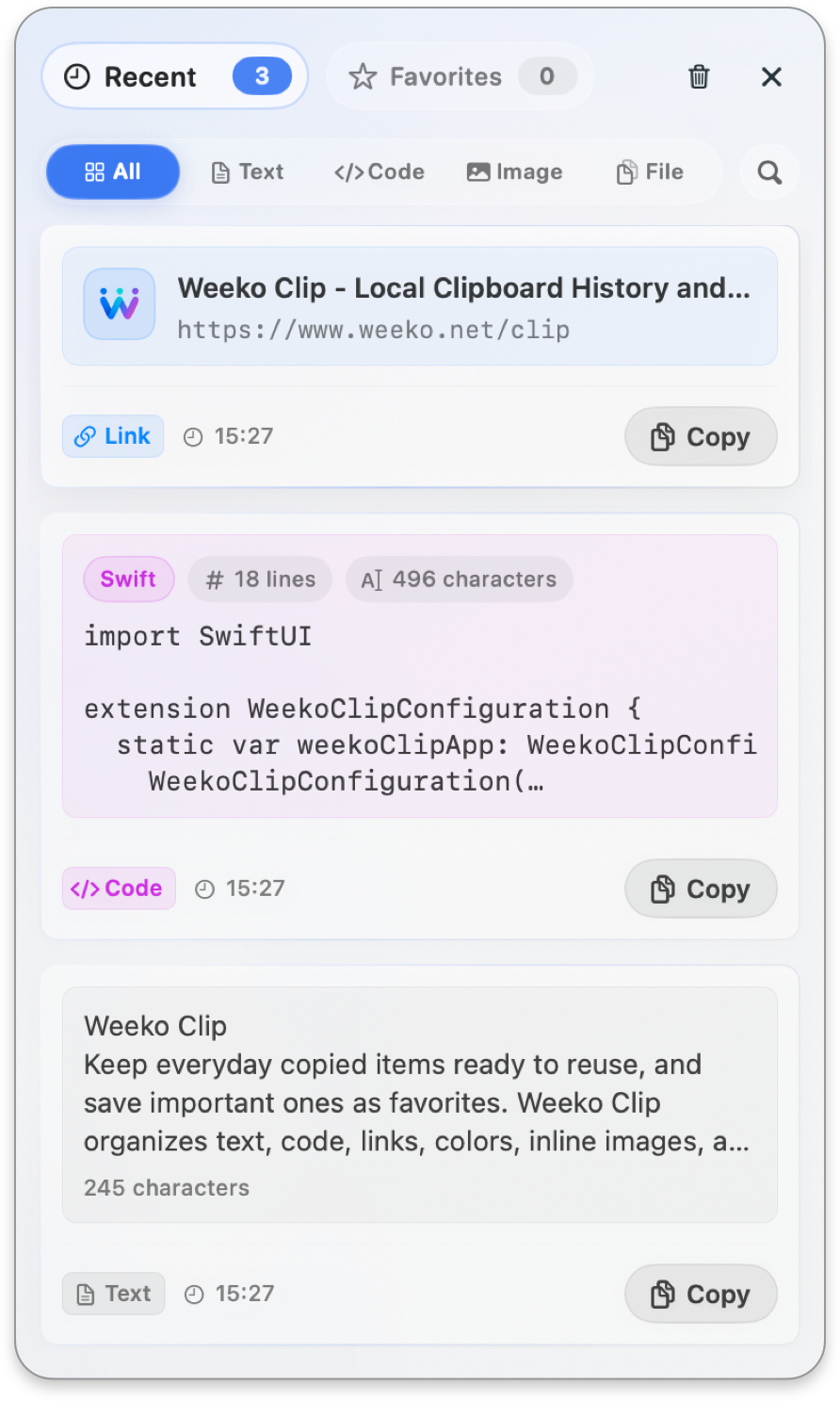
These are real Weeko Clip list views. Everyday copies enter Recent, keywords and type filters narrow the list, and items worth keeping can move into Favorites.
New copies appear by time, with content type, timestamp, and copy action visible at a glance.
Filter instantly by keyword and content type to narrow a long history to the records you need.
Keep frequently reused items separate from Recent so clearing recent history does not remove them.
You decide whether to enable history on first launch. Only new copies are recorded, and items copied while paused are not added later.
Recent is for everyday copy history. Favorites keeps reusable text, code, links, colors, images, and paths for the long term.
Search matches body text, link titles and URLs, color values, file names, paths, and related metadata, then ranks useful matches first.
Open the right preview before copying back. Missing files, link opening, and partially unavailable file groups are clearly reported.
Stores plain text, paragraphs, and long content with character count, full preview, wrapping, and text selection.
Recognizes JSON and common Swift, Python, JavaScript, TypeScript, and other code, with language, line, and character counts.
Recognizes HTTP and HTTPS URLs. Titles and favicons are fetched only after you enable link preview, and opening requires confirmation.
Supports 3-, 4-, 6-, and 8-digit HEX, RGB/RGBA, and NSColor, including alpha and separate format copying.
Stores PNG, TIFF, HEIC, and HEIF clipboard image data. Image files copied from Finder keep their source path and may also keep a local cache of up to 64 MB for reliable preview and reuse.
Stores Finder file paths with name, location, type, size, dates, and current availability without duplicating originals.
Stores path and basic status, counts only first-level items, and does not recursively calculate size or copy folder contents.
Groups multiple copied files or folders, records up to the first 100 items, and skips missing items when copying.
Review dimensions, format, and file size, open in macOS Preview, save a copy, or write the image back to the clipboard.
View language, lines, and characters with code styling. JSON is formatted and long code scrolls in both directions.
Inspect the swatch, original value, format, and alpha, then copy HEX, RGB, RGBA, or NSColor separately.
Review path, type, size, and dates, verify that the original still exists, copy its path, or reveal it in Finder.
You enable recording yourself, sensitive-text filtering starts on, and link previews start off. Pausing, ignored apps, and local cleanup stay easy to reach.
Clipboard history, favorites, search indexes, image caches, and favicon caches stay on the current Mac by default.
Sensitive filtering starts on for keys, tokens, and card numbers, with optional filters for verification codes and suspected password fields.
Link title and favicon fetching starts off; when enabled, local, private-network, and sensitive-query links are skipped where possible.
Regular files, folders, and file groups keep path references only. Copied image files keep the source path and may also be cached locally, up to 64 MB per image.
The menu bar shows up to four quick records. In public settings, pause recording, clear Recent, or ignore a selected app.
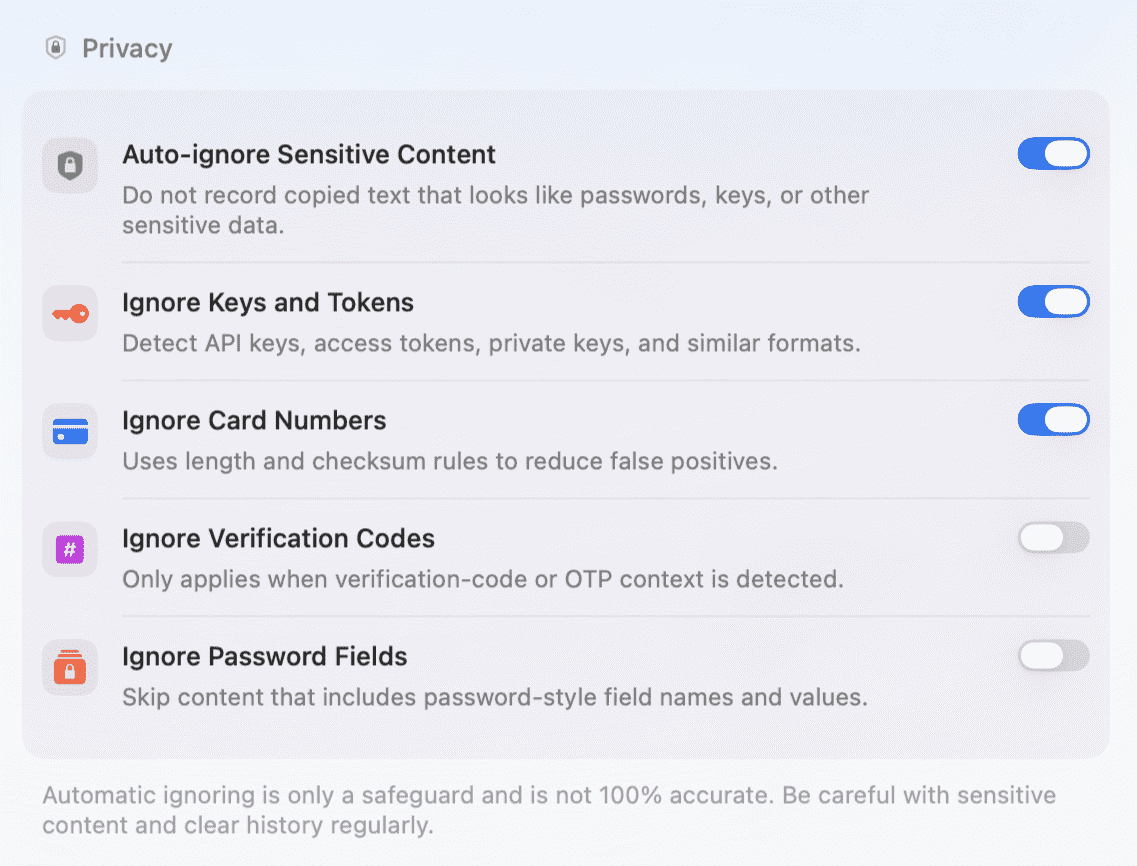
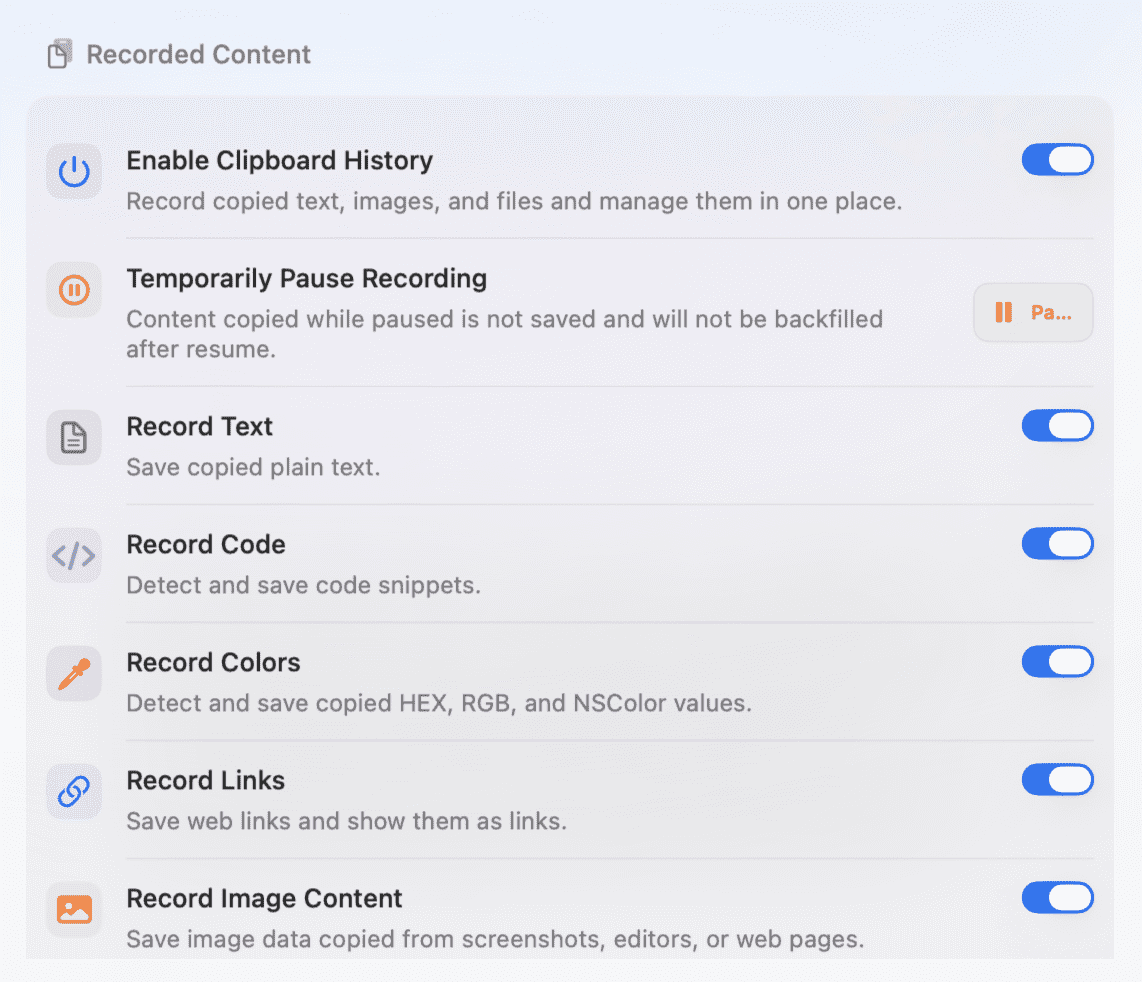
Choose content types, ignored apps, history limits, and panel behavior. Three global shortcuts, launch at login, and Dock icon visibility are configured separately.
Turn history on or off, pause for 15 or 30 minutes, one hour, or until tomorrow, and control six recording groups separately.
Show up to four quick records and set separate global shortcuts for the panel, Search, and Favorites.
Set record limit, retention period, maximum text length, and duplicate behavior. Pro adds manual Favorite ZIP import and export.
Choose the default list, enter Search and focus it automatically, close after copying, and configure haptics, sound, and image copy notices.
Free includes recording, search, previews, favorites, shortcuts, and privacy controls. Pro expands Recent and Favorites capacity and adds Favorite ZIP backup and restore.
Favorite ZIP files may contain sensitive text, inline or cached image data, and local paths. Weeko Clip does not upload them automatically, so keep exported files secure.
No. The current version has no cloud sync. History, Favorites, search indexes, and caches stay on this Mac. Limited information leaves the device only when required by features you choose, such as link preview, App Store purchases, feedback, or shared diagnostics.
Not unless you enable it. The first-launch guide lets you start history or decide later. Only new copies are recorded, and items copied while paused are not added after recording resumes.
Regular files, folders, and file groups are not duplicated; they keep path references. Image files are the exception: Weeko Clip keeps the source path and may create a local cache of up to 64 MB so preview and reuse can continue if the original moves.
Not by default. Title and favicon fetching starts off and runs only after you enable it. Local, private-network, and sensitive-query URLs are skipped where possible.
Not currently. Search does not include OCR, date filters, source-app filters, or saved searches. Ignored apps prevent recording, but source app names are not shown in history.
Free includes 100 Recent records, 20 Favorites, and the complete search, preview, shortcut, and privacy experience. Pro raises the limits to 1,000 and 200 and adds Favorite ZIP import and export.
Text, code, links, colors, inline images, cached image-file data, and favicons can be included. Regular files, folders, and file groups back up path references only. Backups may be sensitive, so store them carefully.
No. It is an auxiliary safeguard and cannot cover every format or scenario. Review and delete sensitive records manually or pause recording before handling them.
Not currently. There is no account, cross-device sync, automatic cloud backup, or cloud restore. Pro can export important Favorites to a ZIP manually.
Weeko Clip supports macOS 13 and later and follows the system light or dark appearance.